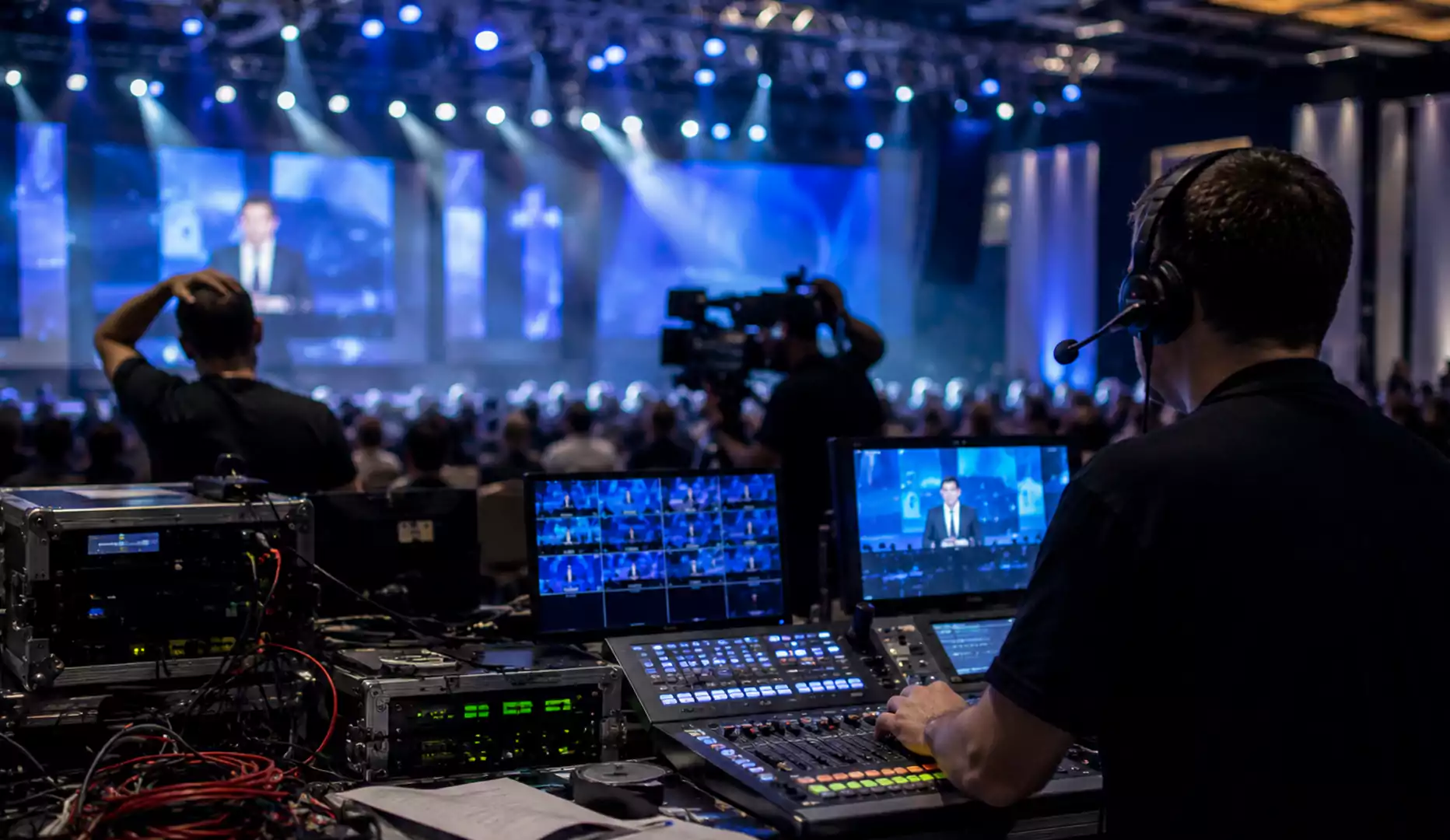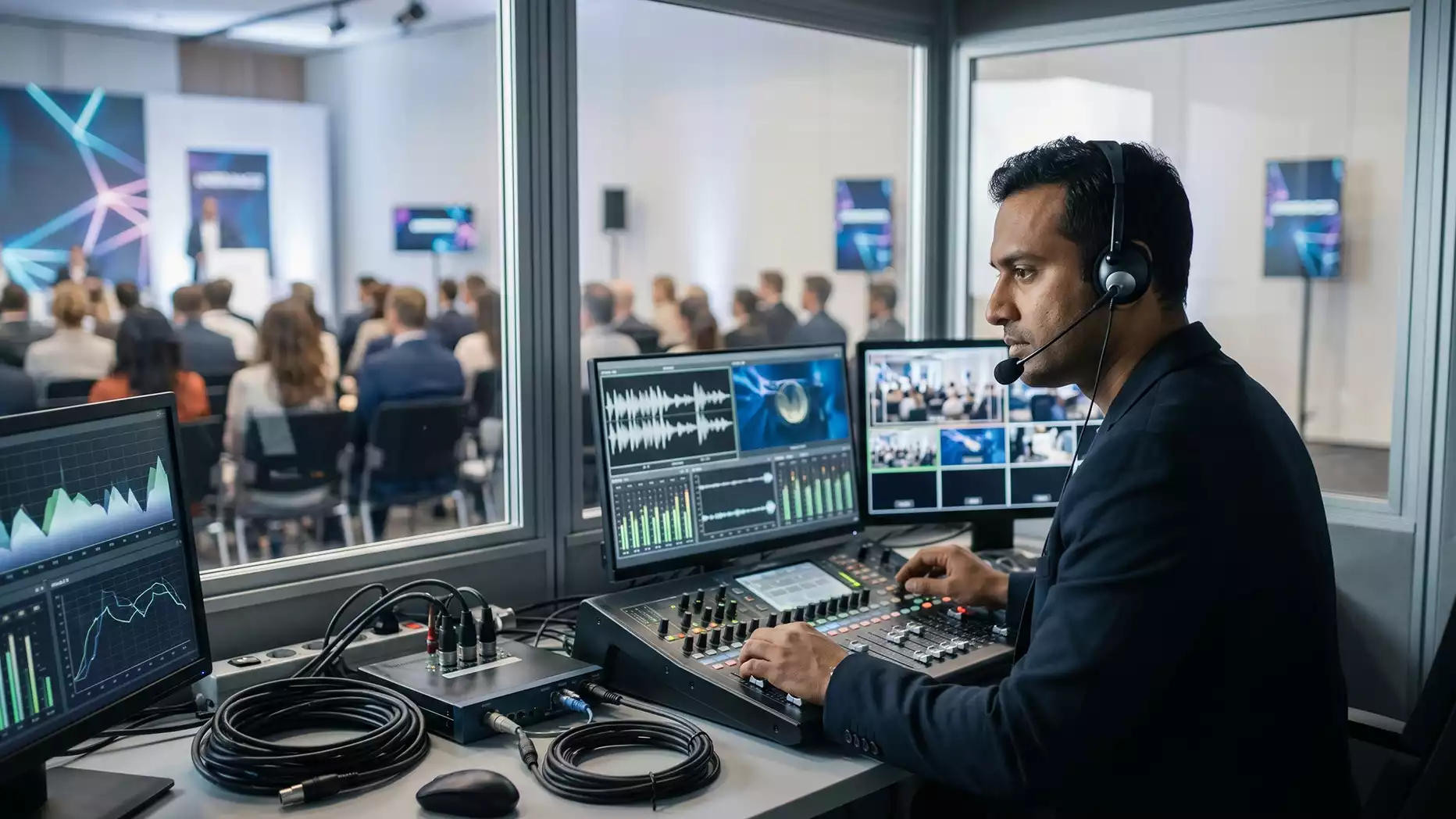
It usually happens mid-sentence. The presenter is halfway through a point they’ve rehearsed, the room is nodding along, then a message pops up in the chat: “We can’t hear you online.”
Not the camera. Not the slides. Not the Wi-Fi.
It’s always the sound.
One buzz, one echo ricocheting around the room, one mic that suddenly drops a bar, and the whole event loses its rhythm. The room goes a bit awkward, the online audience starts drifting, and the presenter does that familiar thing: tapping the mic like it’s an old remote that’s stopped working (not their proudest moment).
Hybrid audio doesn’t have to be a gamble, though. With a simple, real-world checklist, you can keep the room comfortable and the online audience locked in, without the stress, panic, or last-second scrambling.
A quick truth, before anything else
Clear hybrid audio comes from treating the room and the livestream as two different audiences with two different needs. The room needs volume and coverage. The online audience needs clean, close sound with minimal room echo. When you plan for both and build two mixes, everything gets dramatically easier to control.
Now let’s make it practical.
The real reason hybrid audio feels complicated
You’re basically running two events at the same time:
- One for people sitting in front of you.
- One for people watching behind a screen.
Each group needs a different type of sound:
- The room needs volume and clarity.
- Online guests need clean, focused audio with no room echo.
If you treat them as one, that’s when things break.
But if you plan for both? Your sound becomes stable, balanced, and dramatically easier to manage.
Microphones: Use the right ones, or nothing works
Clip-on mics for presenters, handheld mics for Q&A, and table mics for panels.
Think of microphones as the “voice” of your hybrid event.
Pick the wrong one, and everything sounds messy.
Hire the right Microphones, and half your audio problems disappear before they even start.
✔ Lavalier mics
Perfect for presenters who walk around or gesture a lot.
✔ Handheld mics
Best for Q&A, because not everyone talks the same way.
✔ Boundary/table mics
Great for panels, roundtables, and group discussions.
✘ Built-in laptop microphones?
Never. They make your voice sound like it’s speaking from inside a metal bowl.
Speaker placement: Where most hybrid events go wrong
Keep speakers in front of the microphones. You know that horrible “WoooooOOo” feedback sound? That happens when the speakers and mics get into a loop. Here’s how to avoid it:
✔ Put speakers in front of the presenter
- Not beside.
- Not behind.
- In front.
✔ Angle speakers away from microphones
- This cuts feedback almost instantly.
✔ Use two speakers at low volume instead of one very loud speaker
- Better coverage.
- Less feedback.
- Cleaner sound.
And do a quick walk-around test; if any area squeals or hums, lower that volume or adjust the angle.
Use the mixer: the heart of hybrid sound
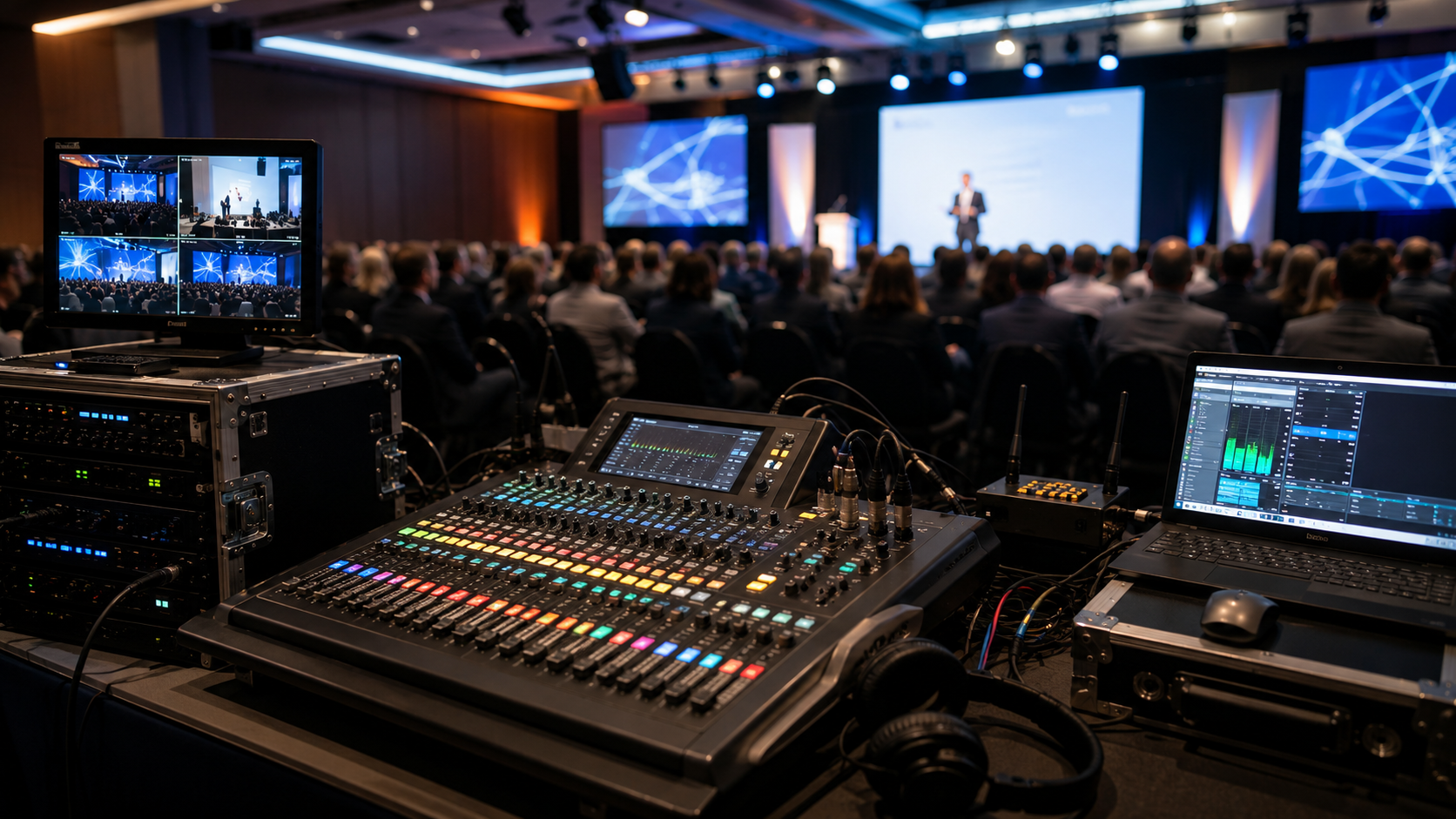
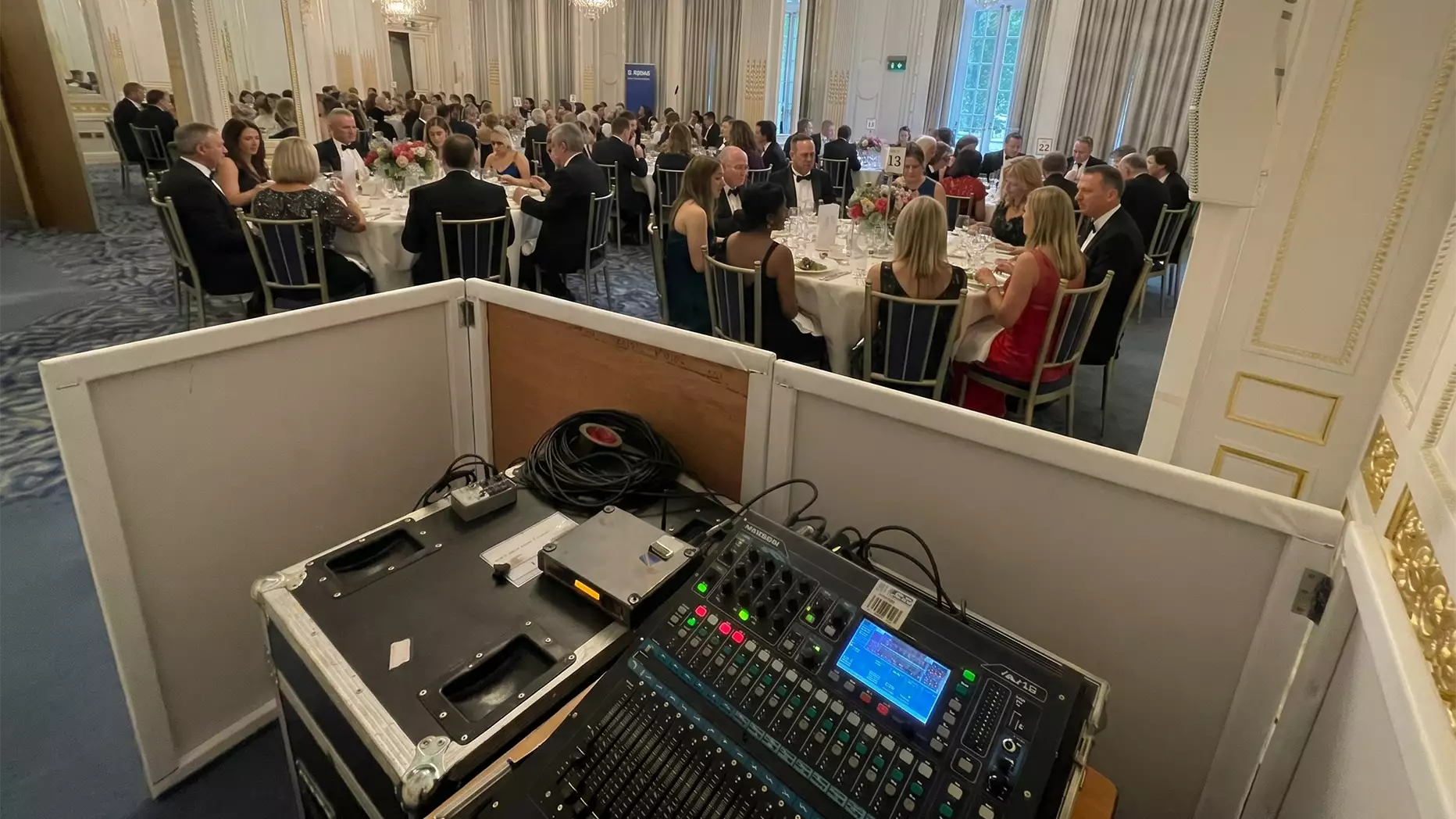
The mixer controls everything your audience hears, in the room and online.
And the trick to hybrid audio is simple:
You must create TWO separate audio mixes.
Mix #1 – For People in the Room
- Higher volume.
- Slight EQ boost.
- Balanced across the space.
Mix #2 – For People Online
- Cleaner.
- Less reverb.
- Lower background noise.
- No speaker output.
If you send your in-room mix directly to the virtual audience, they’ll hear:
- Chairs moving.
- Side conversations.
- Echo.
- Air conditioning.
- Stage noise.
So make sure the mixer or audio interface sends a clean feed to your laptop.
- Why headphones matter
You can’t trust the room speakers to tell you how the online sound actually feels. Headphones give you the real picture instantly.
Connecting the mixer to Zoom, Teams, or YouTube the right way
Streaming platforms love to “help,” which often ruins the sound.
Turn off:
- Auto gain.
- Noise suppression.
- Echo cancellation (only turn this off if your mix is clean).
- Background noise filters.
- Auto volume adjustments.
Then:
- Set the audio input manually.
- Match the sample rate (48kHz is safe).
- Do a 1-minute test call.
- Check lip-sync.
Also, always keep a second laptop ready. Hybrid events don’t wait for restarts.
Turn on captions for accessibility (simple but powerful)
Clear audio isn’t just about good sound. It’s also about making sure everyone can follow along, no matter how they’re joining. That’s where captions help.
Most virtual platforms like Zoom, Teams, and YouTube offer automatic captioning.
Turn it on before you go live.
Captions help:
- Attendees with hearing difficulties.
- Remote guests in noisy environments.
- Viewers without headphones.
- People are watching the replay.
- Participants who prefer reading along.
It takes less than a minute to enable, but it makes the entire event feel more inclusive and easier to follow. And if your event will be recorded, captions help your content stay clear long after the event ends. A tiny step, big impact.
Fixing room echo without fancy equipment
You don’t need a recording studio. Just think “soft surfaces.”
Echo reduces when you add:
- Carpets.
- Curtains.
- Stage backdrops.
- Soft seats.
- Sound panels (if available).
Why do empty rooms sound terrible?
Empty halls bounce sound everywhere. Once the audience fills the room, the audio instantly gets cleaner.
But testing in an empty room? Always adjust EQ slightly brighter to compensate.
Hybrid audio testing routine (your pre-event lifeline)
Test the room sound first, then the online sound separately.
Do this in order:
Step 1: Line check
Does every mic turn on? Do speakers work? Are cables connected?
Step 2: Room mix check
Walk around and listen to the room. Are voices clear?
Step 3: Virtual mix check
Join a call from a different laptop. Listen through headphones. Check levels.
Step 4: Latency & sync test
Make sure mouth movement matches the audio online.
Step 5: Q&A test
Pass the handheld mic and make sure both audiences hear it clearly. This entire routine takes 8–10 minutes but saves your event from chaos.
During the event: what you need to watch (constantly)
Hybrid audio changes the moment people walk in.
Here’s what to monitor:
- Mic volume (quiet speakers suddenly start projecting).
- Echo starting in the corners.
- Wireless mic batteries.
- Audience questions.
- Online feed level.
- Muting unused channels.
- Any hums, buzzes, or interference.
One person should monitor the room. One should monitor the online call.
This is where AV Productions is often brought in, especially for events with multiple presenters or multiple rooms. They handle the live monitoring so nothing slips.
Common hybrid audio problems and how to fix them fast
❌ Echo
- Lower gain.
- Move speakers.
- Mute unused mics.
❌ Feedback
- Angle speakers away.
- Reduce the stage monitor volume.
❌ Online audience can’t hear the Q&A
- Always use a handheld mic for questions.
❌ Hollow or distant sound
- Move the mic closer.
- Reduce room reverb.
❌ Buzzing or hum
- Replace cables.
- Separate audio gear from power cables.
Small adjustments fix most hybrid issues instantly.
Equipment list you actually need (simple & practical)
Basic setup
- 1–2 lavalier mics.
- 1 handheld mic.
- Small mixer.
- Speakers.
- Audio interface.
- Cables + backup batteries.
Advanced setup
- Digital mixer.
- Multiple wireless mics.
- Boundary mics.
- USB multichannel interface.
- Headphone monitoring.
- Acoustic treatment.
Pick based on the size of your event, not the size of your budget.
Final 3-minute pre-event checklist
Right before going live:
- All mics turned on.
- Speakers are angled properly.
- Room sound tested.
- Online sound tested.
- Recording activated.
- Spare batteries ready.
- Backup laptop ready.
- The Q&A mic is placed visibly.
- Cable paths taped.
- Presenter volume balanced.
If all this looks good, you’re ready to start.
Great hybrid audio doesn’t happen by accident
Good hybrid audio is what keeps people engaged.
- It keeps the room calm.
- It keeps the online crowd connected.
- And it keeps your event feeling smooth from start to finish.
If you ever need tips running a larger hybrid setup or want to avoid last-minute audio stress, AV Productions can manage the full sound system for both your in-person and virtual audience.
With the right checklist, your hybrid events won’t just sound “fine.” They’ll sound clean, confident, and absolutely professional.
FAQs
How do I make sure both in-person and online guests hear clearly?
Create two separate mixes: one for the room and one for the virtual audience. Monitor the online feed through headphones, because it’s more accurate than judging from room speakers.
Why does my hybrid event audio echo online?
Online echo usually happens when the platform is receiving too much room sound, or when speakers and microphones are interacting. Lower gain, mute unused mics, reposition speakers so they fire away from mic pickup, and send a clean mixer feed to the livestream.
What microphones work best for hybrid events?
Lavalier mics are best for presenters, handheld mics are best for Q&A, and boundary or table mics can work well for panels. Avoid built-in laptop microphones because they pick up room noise and make speech sound distant.
How do I test audio before going live?
Test in a clear order: confirm every mic and cable works, build the room mix, then join a test call from another device and listen through headphones to check the online mix. Finish with a quick lip-sync check and a Q&A mic test.
What’s the most common mistake in hybrid event sound?
Using one audio mix for both audiences. The room needs coverage and volume, while the online audience needs a clean, close feed with minimal room ambience.
Do I need a sound engineer for a hybrid event?
Not always. For simple events, a careful checklist and one dedicated monitor can work. If you have multiple presenters, panels, or breakout rooms, having an AV technician monitoring both the room and online feed makes the whole event smoother.